
How to Back Up Your Photos and Files: Easy Steps to Protect Your Data
Losing important photos and files can be frustrating and sometimes devastating. Whether from accidental deletion, hardware failure, or theft, data loss is a common problem. The good news? Backing up your photos and files is easier than ever. In this post, we’ll guide you through practical methods to back up your data and keep it safe.
Why Backing Up Your Photos and Files Is Important
Your digital files—photos, documents, videos—are valuable. Photos capture memories, and documents may contain important information like work files or personal records. Without backups, you risk losing everything if something goes wrong.
Backing up means making copies of your data in a separate place so you can recover it if the original is lost or damaged. This simple step offers peace of mind and protects you against data disasters.
Types of Backup Options
There are several ways to back up your photos and files. Choosing the right method depends on your needs, budget, and how much data you have to store.
1. External Hard Drives
External hard drives connect to your computer via USB and offer large storage capacity at a relatively low cost.
Pros:
– Easy to use and set up
– Large storage space for many files
– One-time purchase
Cons:
– Can be lost, stolen, or damaged physically
– Requires manual backup unless automated software is used
2. USB Flash Drives
Flash drives are smaller, portable devices best for backing up smaller amounts of data or specific important files.
Pros:
– Portable and inexpensive
– Simple to use
Cons:
– Limited storage compared to hard drives
– Easy to misplace
3. Cloud Storage Services
Cloud backup stores your files on remote servers accessed via the internet.
Popular Providers:
– Google Drive
– Dropbox
– Microsoft OneDrive
– Apple iCloud
Pros:
– Automatic syncing and backups
– Access files anywhere with internet
– Offers file versioning (recover previous versions)
Cons:
– Requires internet connection
– Monthly or yearly subscription fees for large storage
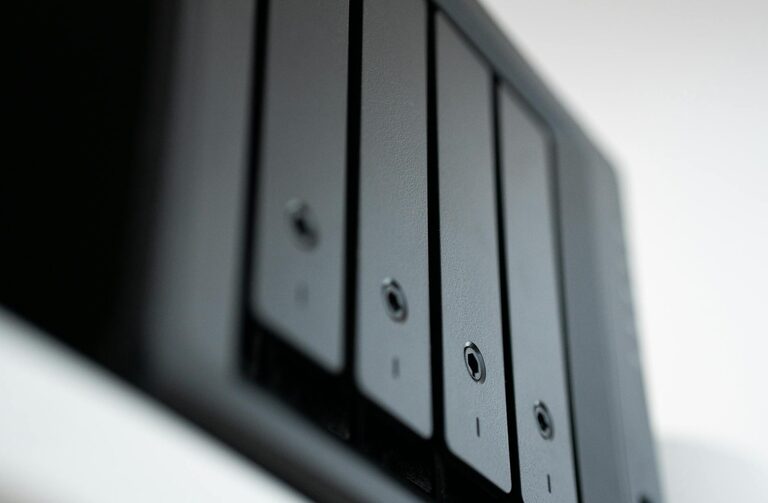
4. Network Attached Storage (NAS)
A NAS device is a small server that connects to your home network, allowing multiple devices to back up data to one central location.
Pros:
– Large capacity and supports multiple users
– Accessible inside your home network
Cons:
– Higher initial cost
– More technical setup
How to Back Up Your Photos and Files: Step-by-Step Guide
Step 1: Identify What to Back Up
Start by making a list of your most important files. Prioritize irreplaceable data such as:
– Photos and videos
– Documents (work files, invoices, personal records)
– Music and creative projects
– Important settings or bookmarks
You don’t need to back up everything—focus on what matters most.
Step 2: Choose Your Backup Method(s)
Most people find that a combination of methods works best. For example:
– External hard drive for large, local backups
– Cloud storage for automatic offsite backup
This redundancy protects you against different types of data loss.
Step 3: Set Up Your Backup System
– For external drives: Plug in the device and copy your files manually or use backup software (like Time Machine on Mac or File History on Windows).
– For cloud services: Create an account, install the app, and select folders to sync automatically.
– For NAS: Follow your device instructions to connect it to your home network and configure backup options.
Step 4: Automate Your Backups
Manual backups can be forgotten. Automating them reduces risk:
– Use built-in backup tools like Time Machine (Mac) or Backup and Restore (Windows).
– Set cloud storage apps to sync folders continuously.
– Schedule regular backups if your software allows.
Step 5: Test Your Backups Regularly
Having a backup is only useful if it works. Periodically:
– Check your backup files to ensure they are complete.
– Try restoring a few files to verify access.
– Update backup settings if you add important new files.
Tips for Effective Backups
– Keep multiple backup copies in different locations (e.g., one local and one cloud-based).
– Use strong passwords and enable two-factor authentication on cloud accounts.
– Keep your backup devices secure and protected from physical damage.
– Organize your files so backups are straightforward and manageable.
– Review and update your backup system at least once a year.
Common Backup Mistakes to Avoid
– Backing up files to the same hard drive as the originals (this won’t protect against drive failure).
– Relying on only one backup method.
– Ignoring error messages or failing backups.
– Not encrypting sensitive data when using cloud services.
Conclusion
Backing up your photos and files doesn’t have to be complicated or expensive. By understanding your options and setting up an easy-to-follow system, you’ll ensure your precious memories and important documents are safe no matter what happens. Start today—your future self will thank you!
—
By regularly backing up your data, you protect your digital life and avoid the stress of unexpected loss. Choose a method that fits your lifestyle, automate your backups, and keep your files safe with confidence.
