
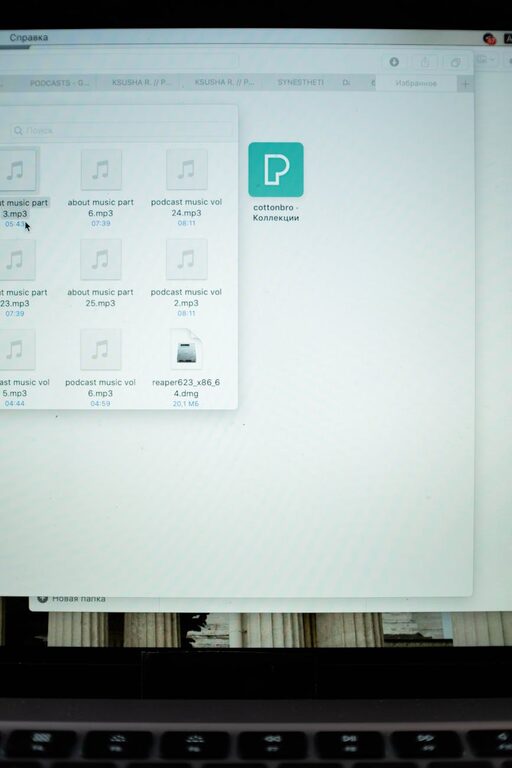
Smart Tips for Organizing Files on Your Computer Efficiently
Keeping your computer files organized can save time, reduce stress, and improve productivity. Yet, many people struggle with cluttered desktops and lost documents. Whether you’re managing work projects, personal photos, or important documents, having a clear system makes a big difference. In this post, we’ll explore practical tips for organizing files on your computer, helping you create an orderly digital space.
Why Organizing Files Matters
Before diving into tips, it’s good to understand why file organization is important:
– Efficiency: Quickly find what you need without searching through clutter.
– Backup: Easier to back up important files when they are well organized.
– Peace of mind: Less digital clutter means less stress.
– Security: Proper folders can help prevent accidental deletion or misplacement.
Now, let’s look at concrete steps to organize your files.
Start With a Plan: Set Up Your Folder Structure
Good organization begins with a thoughtful folder structure. Here’s how to create one:
1. Identify Main Categories
Think about the key areas your files belong to. Examples include:
– Work or School
– Personal
– Photos
– Finance
– Projects
– Software or Downloads
2. Create Main Folders
On your computer’s main drive or in your Documents folder, create a folder for each main category. Use clear, simple names so you can quickly recognize them.
3. Use Subfolders for Details
Break down main folders into smaller, more specific subfolders. For example, inside “Work,” you might have subfolders for “Reports,” “Presentations,” and “Meeting Notes.”
Naming Files: Keep It Clear and Consistent
File names should be descriptive enough to understand without opening the file.
Tips for Effective File Naming
– Include dates using the YYYY-MM-DD format for easy sorting.
– Use clear keywords describing the content.
– Avoid spaces and special characters; instead, use underscores (_) or hyphens (-).
– Keep names concise but informative.
Example:
Good: `2024-03-15_Project_Report_Q1.pdf`
Less effective: `report.pdf`
Regularly Declutter and Delete Unnecessary Files
Organization isn’t a one-time task. To maintain order:
– Schedule regular reviews (weekly or monthly).
– Delete duplicated files or outdated versions.
– Archive older files you don’t use frequently by moving them to an external drive or cloud storage.
Use Built-in Tools and Features
Most operating systems offer helpful tools to manage files more efficiently.
1. Search and Tags
Use your operating system’s search bar to find files by name or type. On macOS, you can add tags to files to group them regardless of folder location.
2. Favorites and Shortcuts
Mark frequently used folders or files as favorites for one-click access. Create shortcuts on your desktop or taskbar to save time.
3. Cloud Storage Integration
Services like Google Drive, Dropbox, or OneDrive allow file synchronization and backup. Organize files in the cloud with the same folder structure as on your computer to avoid confusion.
Backup Your Files Regularly
Data loss can happen unexpectedly. Make backing up part of your organization routine by:
– Using external hard drives.
– Enabling automatic cloud backups.
– Setting reminders to update backups regularly.
Tips for Specific File Types
Different file types might need different handling.
Photos and Videos
– Use date or event-based folders (e.g., “2023_Vacation_Hawaii”).
– Consider photo management software that adds tags and facial recognition.
Documents and PDFs
– Organize by project or topic.
– Convert scanned documents to searchable PDFs using OCR tools.
Music and Media
– Arrange by artist, album, or genre.
– Keep media files separate from work-related folders.
Avoid Desktop Clutter
A cluttered desktop slows your workflow and looks messy.
– Use the desktop only for temporary or urgent files.
– Regularly move desktop files into proper folders.
– Create a folder on the desktop (e.g., “To Sort”) to hold files temporarily before organizing.
Automate Where Possible
Consider automation tools to save time:
– Use scripts or automation apps to rename or move files automatically.
– Set up email filters to save attachments directly to specific folders.
– Use file syncing applications to keep multiple devices updated.
Final Thoughts
Organizing files on your computer is an ongoing but rewarding process. With a clear folder system, consistent naming, regular decluttering, and smart use of tools, managing digital files becomes simple and stress-free. Start with a small batch of files and build habits gradually to enjoy a tidy and efficient digital workspace.
Try implementing some of these tips today—and watch your productivity improve as you find your files exactly where you need them!
